> ## Documentation Index
> Fetch the complete documentation index at: https://learn.getodin.ai/llms.txt
> Use this file to discover all available pages before exploring further.
# Azure AD Single Sign-On (SSO)
> Configure SSO Authentication With Azure AD
This article serves as a comprehensive guide for configuring Single Sign-On (SSO) using Azure Active Directory (AD) as your identity provider. By integrating Azure AD with Odin AI, your organization can enhance user authentication by allowing users to access the platform using their existing Microsoft credentials. You will find prerequisites, detailed configuration steps, and troubleshooting tips specifically for Azure AD SSO.
Utilizing Azure AD SSO provides several key advantages:
* **Centralized Authentication** - One login for all enterprise applications.
* **Enhanced Security** - Organization-controlled access.
* **User Management** - Centralized user provisioning and deprovisioning.
* **Compliance** - Meets enterprise security requirements.
* **User Experience** - Seamless authentication experience.
## Azure AD SSO Configuration
This section outlines the steps required to configure Azure AD SSO for your Odin AI instance.
### Prerequisites
Before proceeding, you should have the following or reach out to your respective team for support:
* Azure Portal administrator access.
* Microsoft 365 account with admin access.
* Your Odin AI instance URL.
### Step 1: Azure AD application setup
1. **Go to Azure Portal**\
Visit [portal.azure.com](https://portal.azure.com) and sign in with your administrator account.
2. **Open Enterprise applications**\
In the Azure portal, under **Azure services**, click **Enterprise applications**.
 3. **Create enterprise application**\
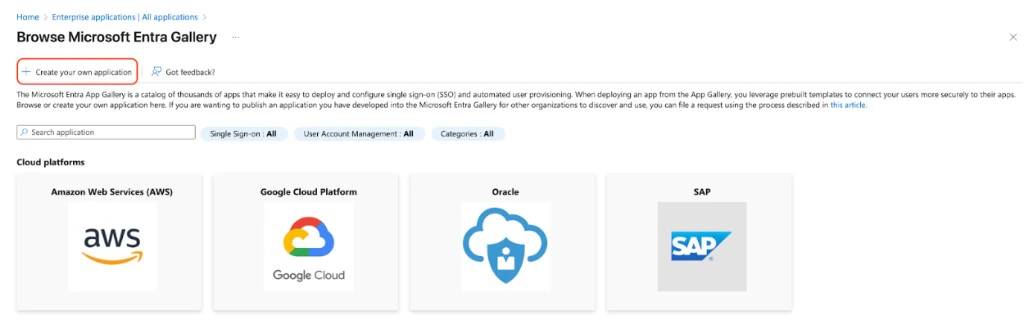
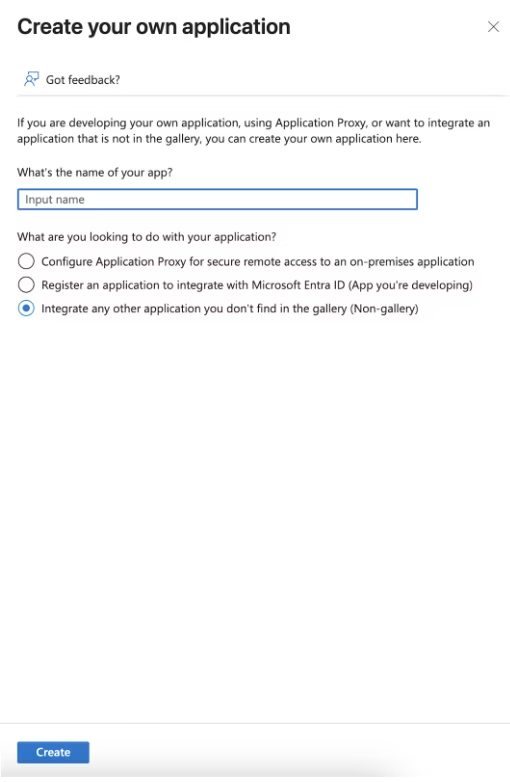
Click **New application**. On the **Browse Microsoft Entra Gallery** page, click **Create your own application**. In the dialog that opens, enter an application name (e.g., "Odin AI"), select **Integrate any other application you don't find in the gallery (Non-gallery)**, and click **Create**.
3. **Create enterprise application**\
Click **New application**. On the **Browse Microsoft Entra Gallery** page, click **Create your own application**. In the dialog that opens, enter an application name (e.g., "Odin AI"), select **Integrate any other application you don't find in the gallery (Non-gallery)**, and click **Create**.
 4. **Set up single sign-on**\
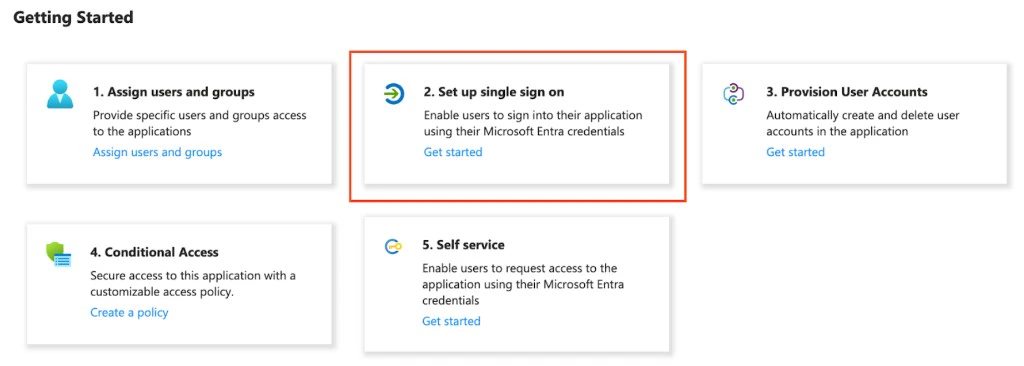
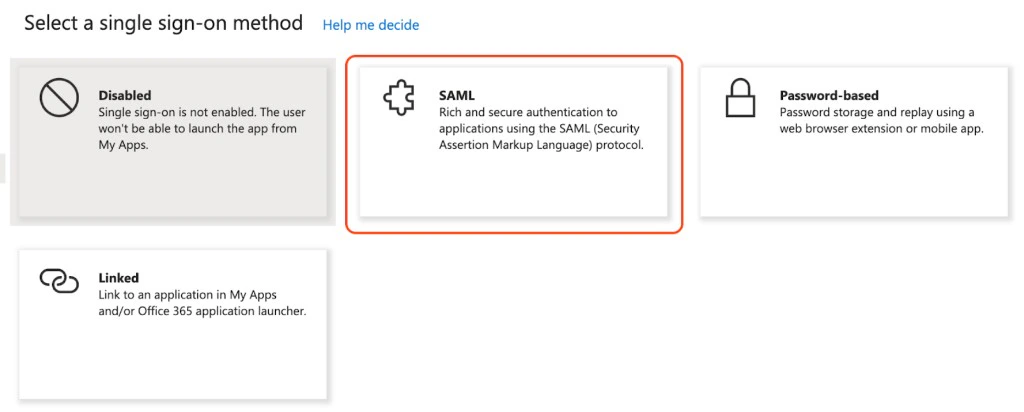
On the application’s **Getting started** page, click **Set up single sign on** (or **Get started** on that card). On **Select a single sign-on method**, choose **SAML**.
4. **Set up single sign-on**\
On the application’s **Getting started** page, click **Set up single sign on** (or **Get started** on that card). On **Select a single sign-on method**, choose **SAML**.
 5. **Configure SAML (Basic SAML Configuration)**\
In **Basic SAML Configuration** enter (for Odin AI Cloud use the values below):
* **Identifier (Entity ID)**: `https://api.getodin.ai/user/azure/sso/saml/acs/admin`
* **Reply URL (Assertion Consumer Service URL)**: `https://api.getodin.ai/user/azure/sso/saml/acs/admin`
* **Sign on URL**: Leave empty.
* **Relay State**: `default`
* **Logout URL**: Leave empty.
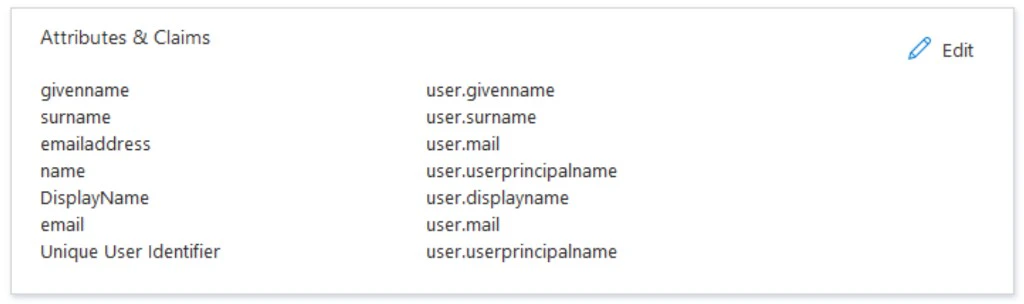
6. **User attributes & claims**\
In **Attributes & Claims**, ensure the following mappings (click **Edit** to add or change):
* **Unique User Identifier** → `user.userprincipalname`
* **email** → `user.mail`
* **emailaddress** → `user.mail`
* **givenname** → `user.givenname`
* **surname** → `user.surname`
* **name** → `user.userprincipalname`
* **DisplayName** → `user.displayname`
5. **Configure SAML (Basic SAML Configuration)**\
In **Basic SAML Configuration** enter (for Odin AI Cloud use the values below):
* **Identifier (Entity ID)**: `https://api.getodin.ai/user/azure/sso/saml/acs/admin`
* **Reply URL (Assertion Consumer Service URL)**: `https://api.getodin.ai/user/azure/sso/saml/acs/admin`
* **Sign on URL**: Leave empty.
* **Relay State**: `default`
* **Logout URL**: Leave empty.
6. **User attributes & claims**\
In **Attributes & Claims**, ensure the following mappings (click **Edit** to add or change):
* **Unique User Identifier** → `user.userprincipalname`
* **email** → `user.mail`
* **emailaddress** → `user.mail`
* **givenname** → `user.givenname`
* **surname** → `user.surname`
* **name** → `user.userprincipalname`
* **DisplayName** → `user.displayname`
 7. **Assign users**\
Go to **Users and groups** > **Add user/group**, select users or groups, and click **Assign**. Assigned users will sign in via SSO once configuration is complete.
### Step 2: Get Azure configuration
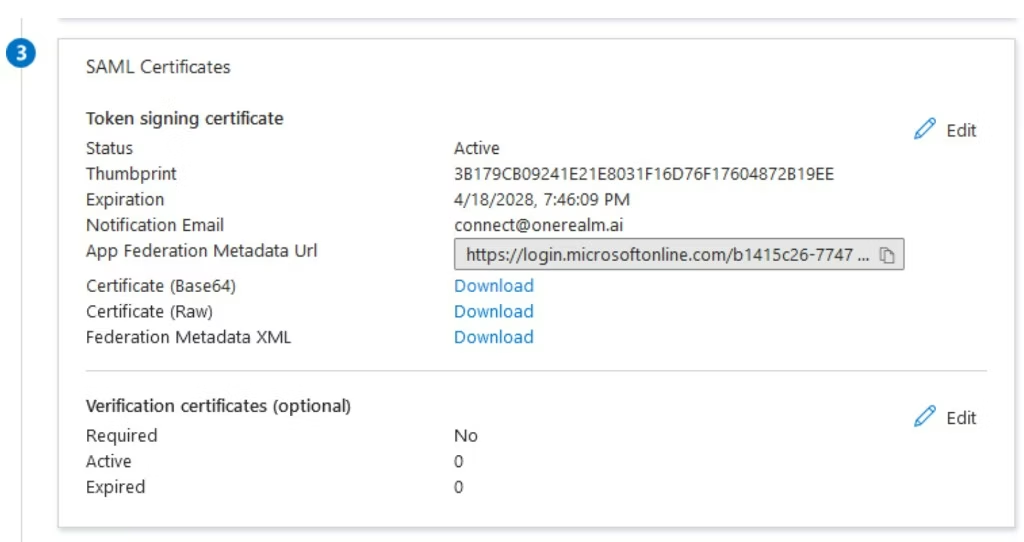
1. **Get the Metadata URL**\
In your application, go to **Single sign-on** > **SAML**. In the **SAML Certificates** section, copy the **App Federation Metadata Url** (use the copy icon next to it). Send this URL to Odin AI Support in Step 3.
7. **Assign users**\
Go to **Users and groups** > **Add user/group**, select users or groups, and click **Assign**. Assigned users will sign in via SSO once configuration is complete.
### Step 2: Get Azure configuration
1. **Get the Metadata URL**\
In your application, go to **Single sign-on** > **SAML**. In the **SAML Certificates** section, copy the **App Federation Metadata Url** (use the copy icon next to it). Send this URL to Odin AI Support in Step 3.
 ### Step 3: Submit configuration to Odin AI
Odin AI's support team will configure and test your SSO setup. Please provide the following information:
1. **Send Configuration Details**\
Email [**Support**](mailto:support@getodin.ai) with the following:
* **Provider**: Azure AD (or Azure)
* **Enterprise ID**: Your organization's domain (e.g., `company.com`)
* **Metadata URL**: The App Federation Metadata Url from Step 2
* **SSO Sign-In Only** (Optional): Specify if you want to require SSO for all users with this domain.
2. **Odin AI Configuration**\
Odin AI's support team will configure SSO on your instance and test the connection. You will be notified once configuration is complete.
3. **Testing**\
Odin AI's team will test the SSO connection, and you may be asked to verify that it works. Once confirmed, SSO will be enabled for your organization.
### Troubleshooting Azure AD SSO
In this section, you will find common issues and solutions related to Azure AD SSO.
**Issue**: SAML assertion errors\
**Solutions**:
* Verify Reply URL and Identifier (Entity ID) both match `https://api.getodin.ai/user/azure/sso/saml/acs/admin`.
* Ensure Relay State is `default`; leave Sign on URL and Logout URL empty.
* Ensure user attributes are mapped correctly.
* Verify the certificate is valid and not expired.
**Issue**: User not found after SSO login\
**Solutions**:
* Verify the user is assigned to the application in Azure AD.
* Check email attribute mapping.
* Ensure the user exists in Odin AI.
* Verify the enterprise ID matches the email domain.
## Contact
For SSO configuration questions or issues, contact [Support](mailto:support@getodin.ai).
### Step 3: Submit configuration to Odin AI
Odin AI's support team will configure and test your SSO setup. Please provide the following information:
1. **Send Configuration Details**\
Email [**Support**](mailto:support@getodin.ai) with the following:
* **Provider**: Azure AD (or Azure)
* **Enterprise ID**: Your organization's domain (e.g., `company.com`)
* **Metadata URL**: The App Federation Metadata Url from Step 2
* **SSO Sign-In Only** (Optional): Specify if you want to require SSO for all users with this domain.
2. **Odin AI Configuration**\
Odin AI's support team will configure SSO on your instance and test the connection. You will be notified once configuration is complete.
3. **Testing**\
Odin AI's team will test the SSO connection, and you may be asked to verify that it works. Once confirmed, SSO will be enabled for your organization.
### Troubleshooting Azure AD SSO
In this section, you will find common issues and solutions related to Azure AD SSO.
**Issue**: SAML assertion errors\
**Solutions**:
* Verify Reply URL and Identifier (Entity ID) both match `https://api.getodin.ai/user/azure/sso/saml/acs/admin`.
* Ensure Relay State is `default`; leave Sign on URL and Logout URL empty.
* Ensure user attributes are mapped correctly.
* Verify the certificate is valid and not expired.
**Issue**: User not found after SSO login\
**Solutions**:
* Verify the user is assigned to the application in Azure AD.
* Check email attribute mapping.
* Ensure the user exists in Odin AI.
* Verify the enterprise ID matches the email domain.
## Contact
For SSO configuration questions or issues, contact [Support](mailto:support@getodin.ai).