Prerequisites
- Your project is Public
- You have:
- Pre-configured the appearance of your Odin AI chatbot
- your Project’s
project idat hand - a set of API Key + Secret to setup the Odin AI app in Google Workspace
Install Odin AI in Google Workspace
- In your Odin AI project, navigate to Public Chatbot.
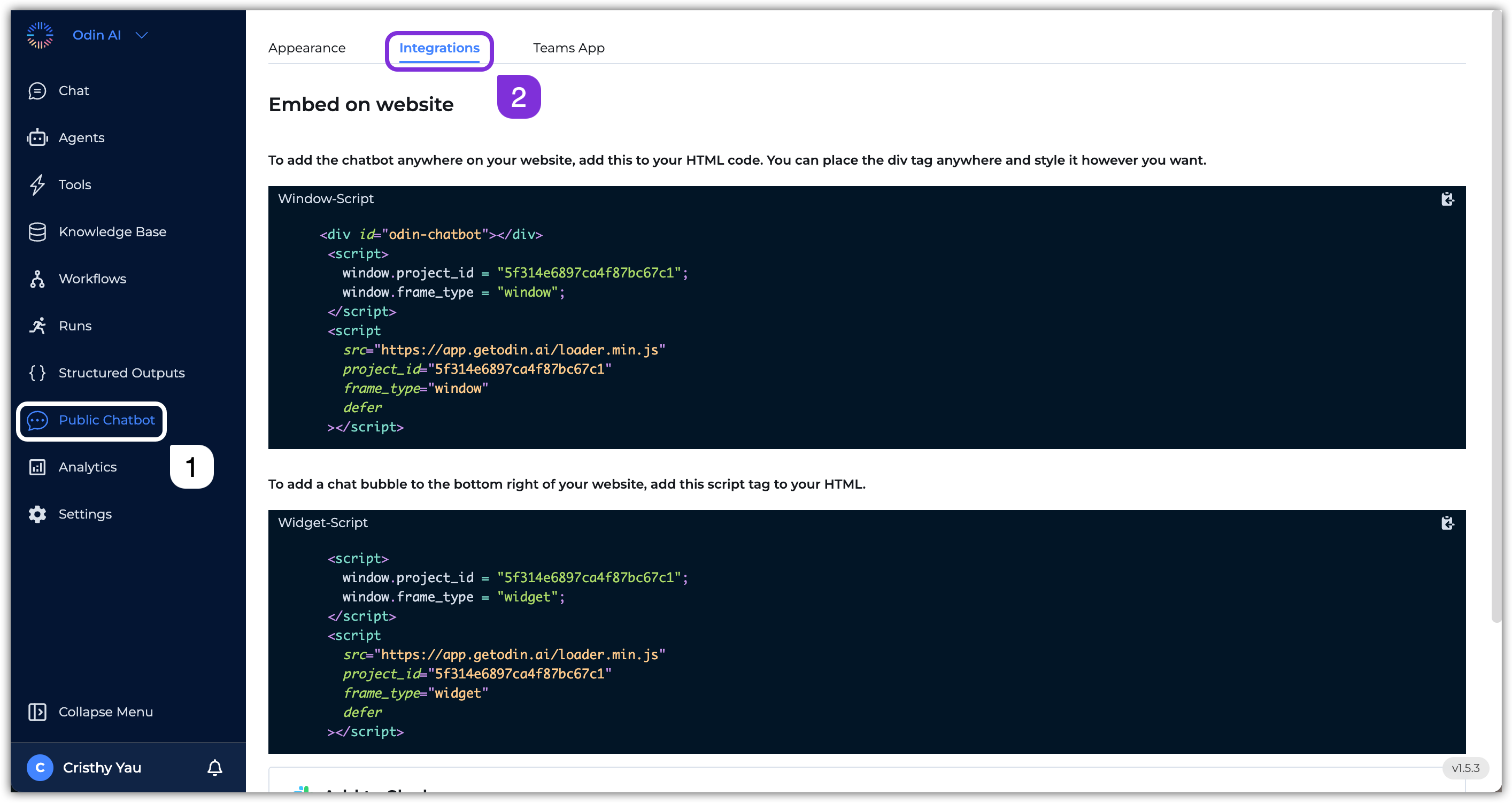
- Go to the Integrations tab.
- Scroll down to the Add to Google Chat section and click Add Bot. You will be redirected to Google Workspace Marketplace.

- In Google Workspace Marketplace, click Install.
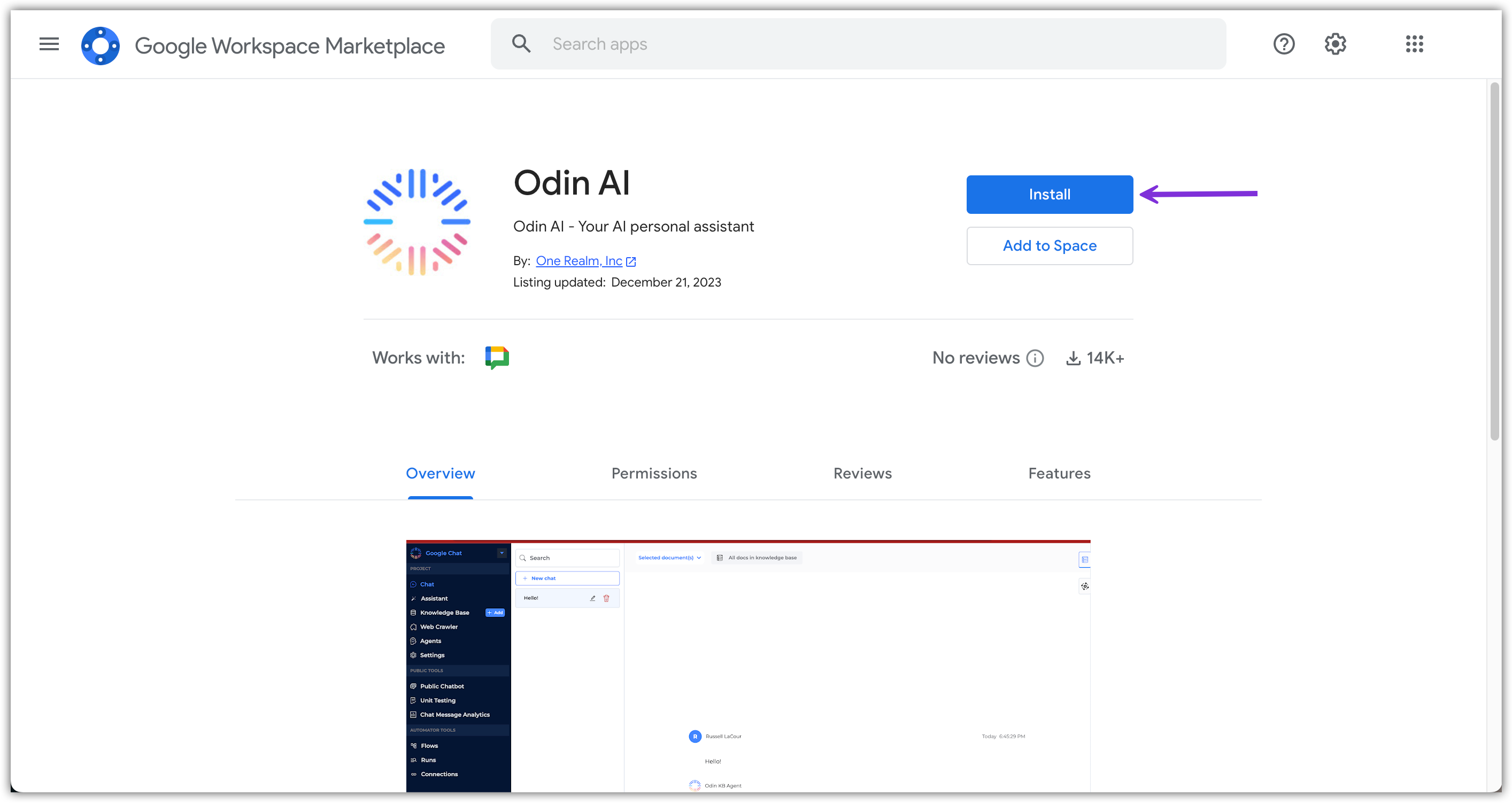
- In the pop-up that appears, click Continue to start installing.
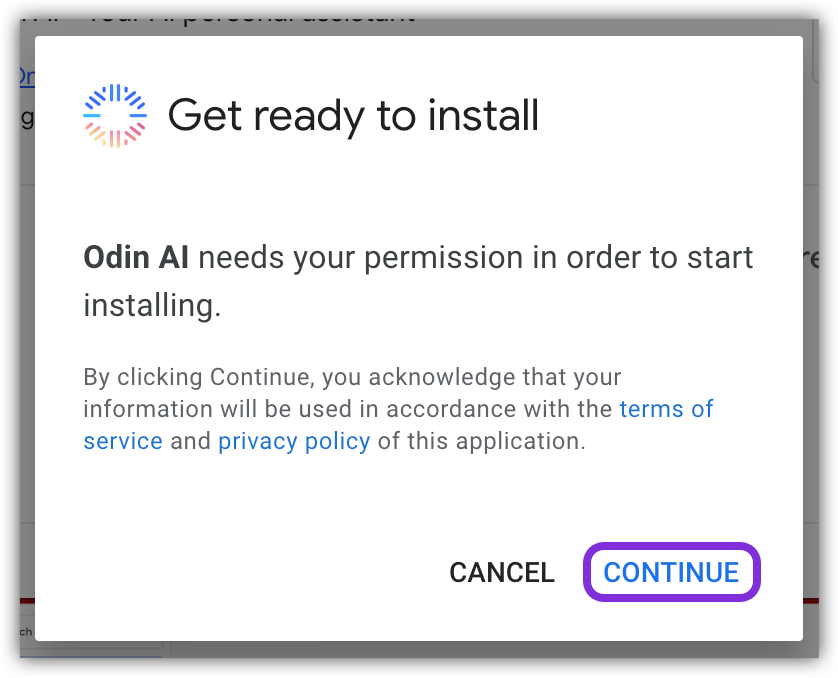
- Another pop-up window appears, requiring you to sign in to your Google Workspace account.
- After signing in, it will require you to grant permissions to One Realm Inc. to access specific information.
- Once all required permissions are granted, Odin AI will be installed in your Google Workspace. Click Done to close the pop-up.
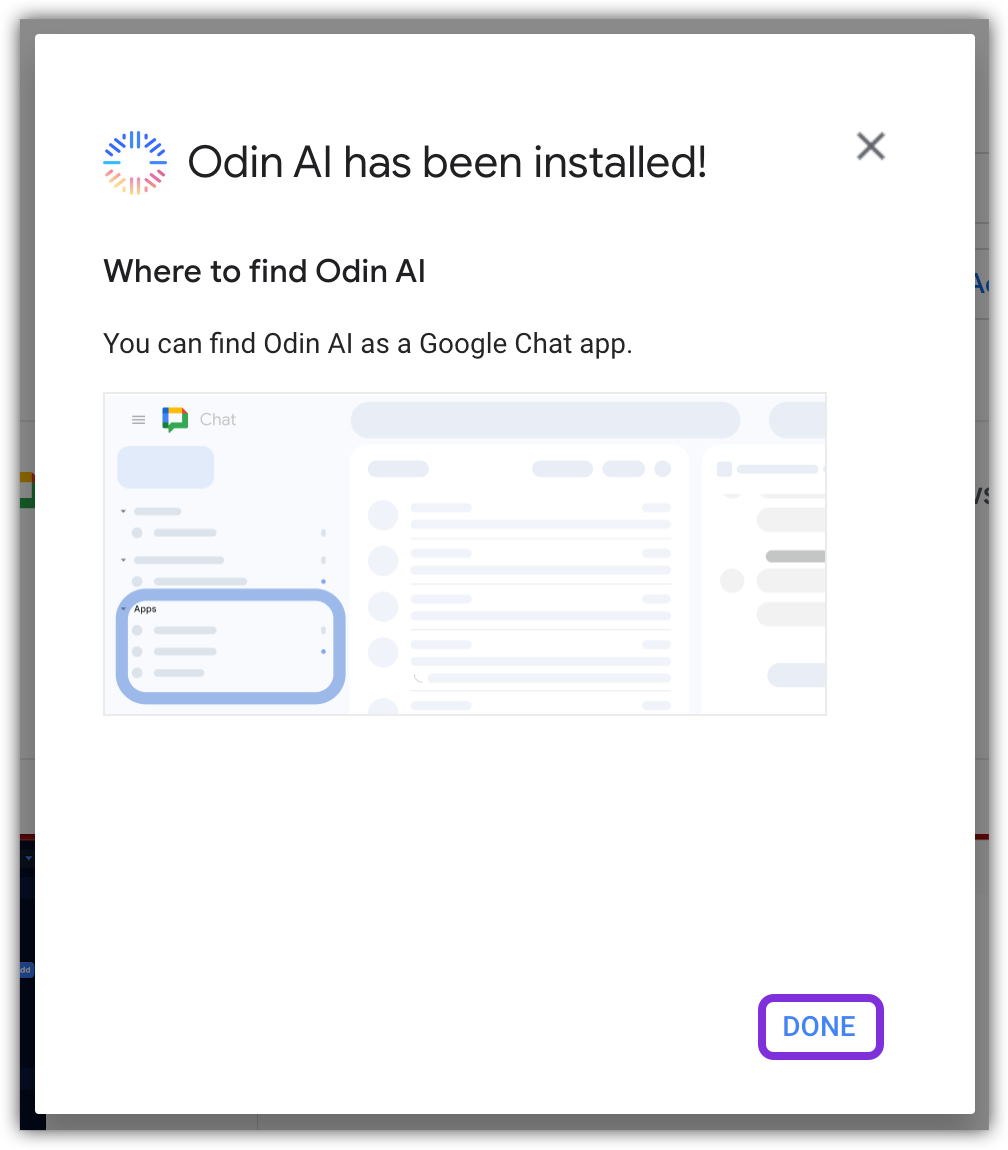
- Navigate to Google Chat and locate the Odin AI app under the Apps section.
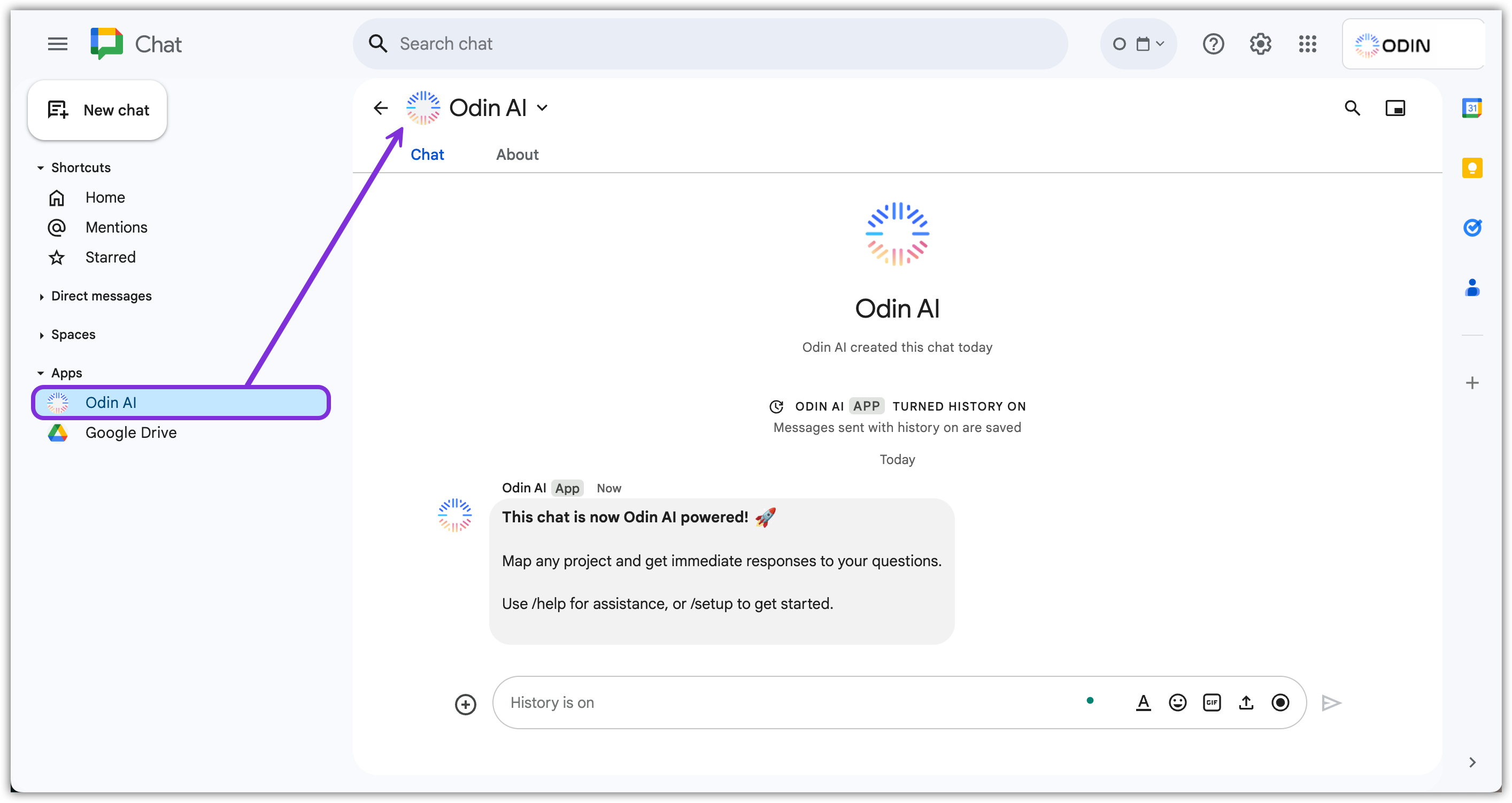
Now that the Odin AI app is installed in your Google Workspace, you need to
set it up to begin using it!
Set Up Odin AI in Google Chat
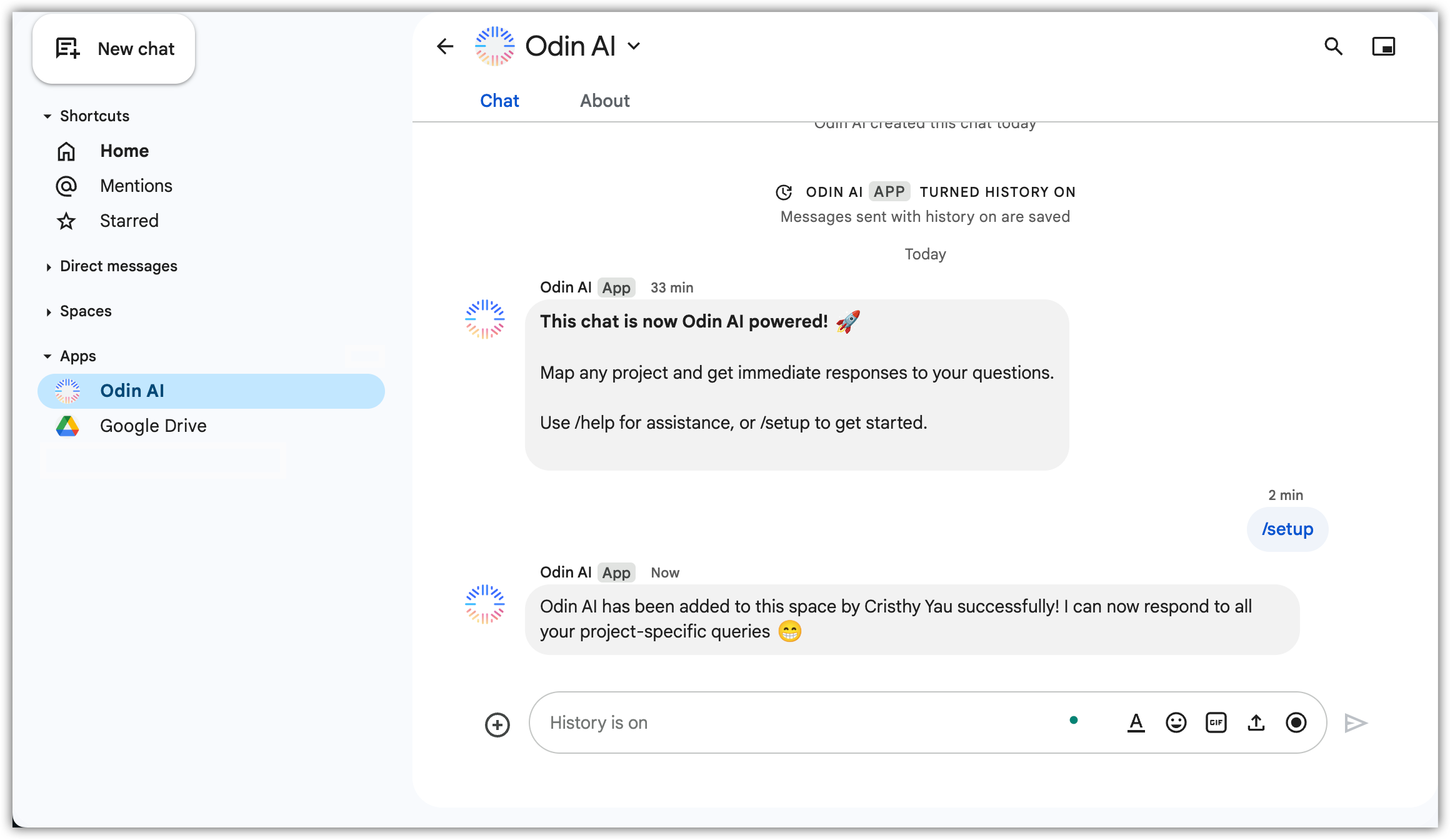
- Within the Odin AI chat in Google Chat, type
/setup, click the option that appears above the text box, and click Send . This command prompts the Odin AI app setup window to enter project details.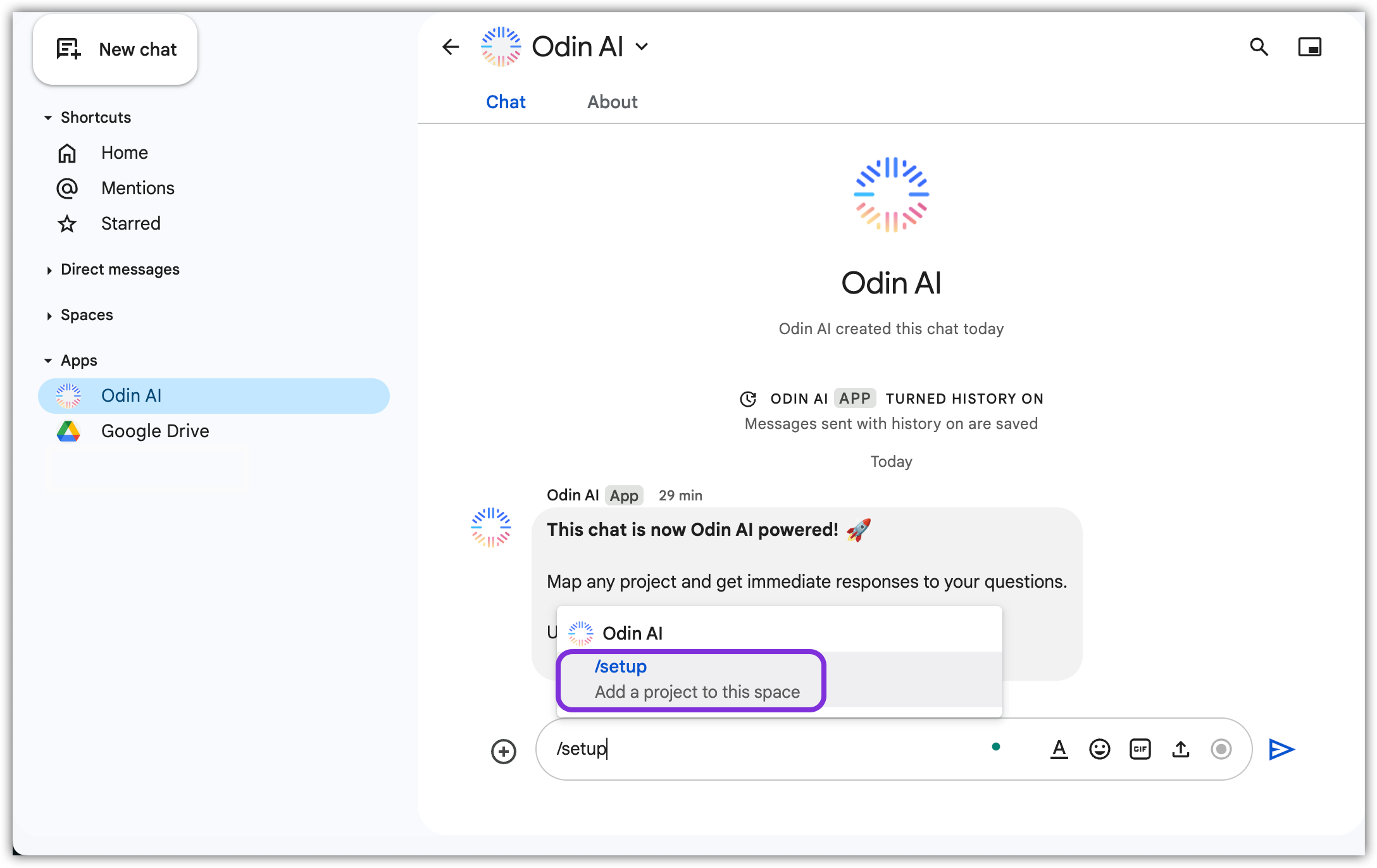
- In the pop-up that appears, enter the following information and click Submit:
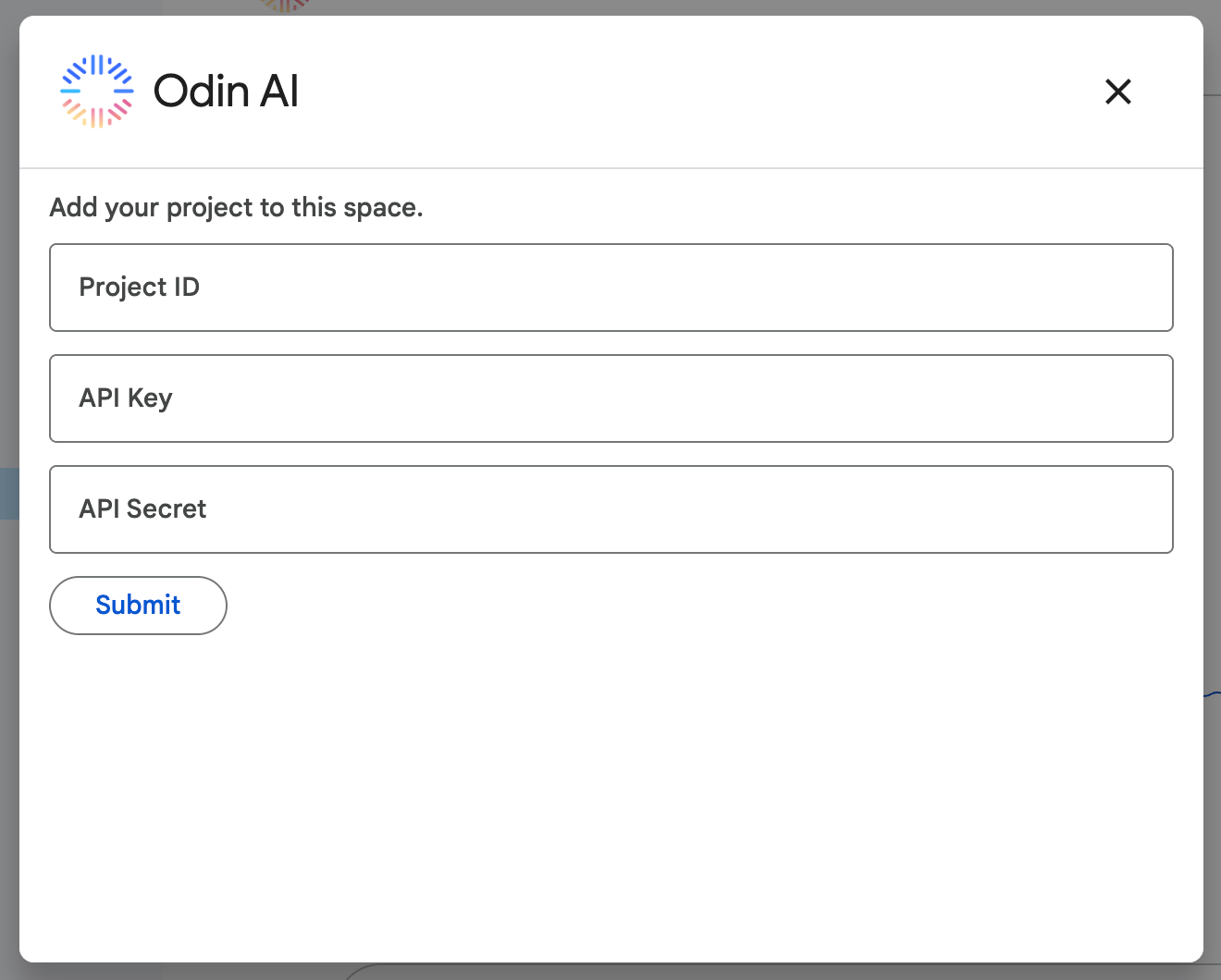 a. Project ID
b. API Key
c. API Secret
a. Project ID
b. API Key
c. API Secret - The Odin AI app is not ready to use within Google Chat!