Export your workflows and import them into other environments.
Odin AI Workflows (also referred to as Flows) allow you to Export your Workflows as JSON files. This enables you to export flows in one project and iumport them into another or build multiple environments, according to your Software Development Lifecycle (SDLC), and Import approved Workflows from development to testing, as an example. When you create a workflow, Versions of that workflow are craeted each time you make changes and save them. However, Exported Workflows do not retain their version history. Instead, a new set Versions will be created as an Imported Workflow is modified and saved. This article will walk you through the steps to Export and Import your Workflows.
Workflows are exported from the Workflows list. If you want to export a workflow you are editing, save your changes and select the house icon in the upper left corner of the editor to return to the list.
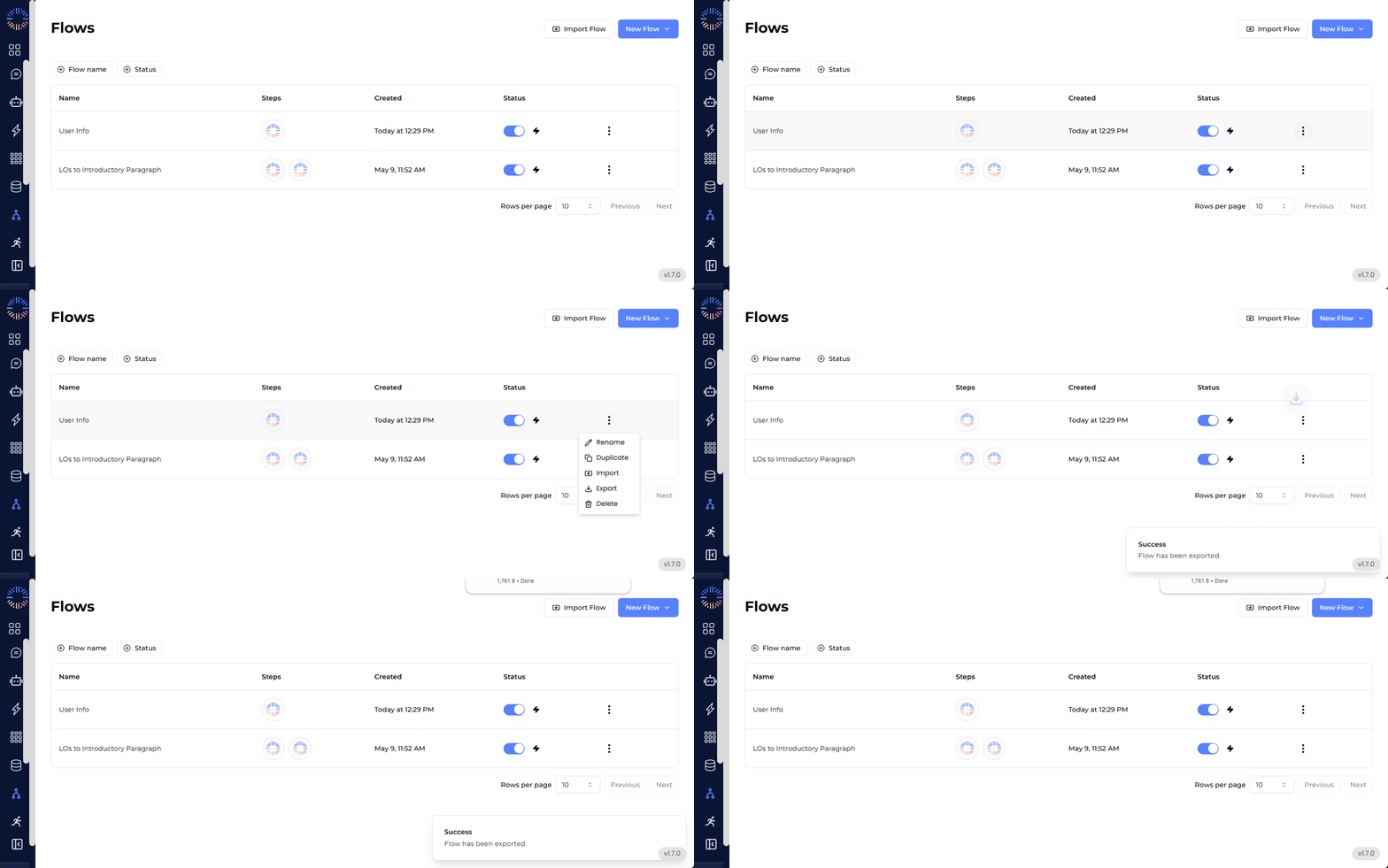
Select Workflows from the left navigation menu to open the Workflows list.
Select the three vertical dots* () on the right side of the workflow you want to export.
Select Export from the context menu that appears.
The a JSON file will be automatically created and downloaded to your Downloads directory with the name of the workflow as the filename, e.g., “My Workflow.json”
Workflows are imported in the Workflows list. Upon import, the workflow is automatically saved and the editor will open for you to review and edit the imported workflow.
The Odin AI Platform application where the exported workflow came from must be the same version as the Odin AI Platform you intend to import the workflow into.
We’re preventing 50 files in the initially released version.
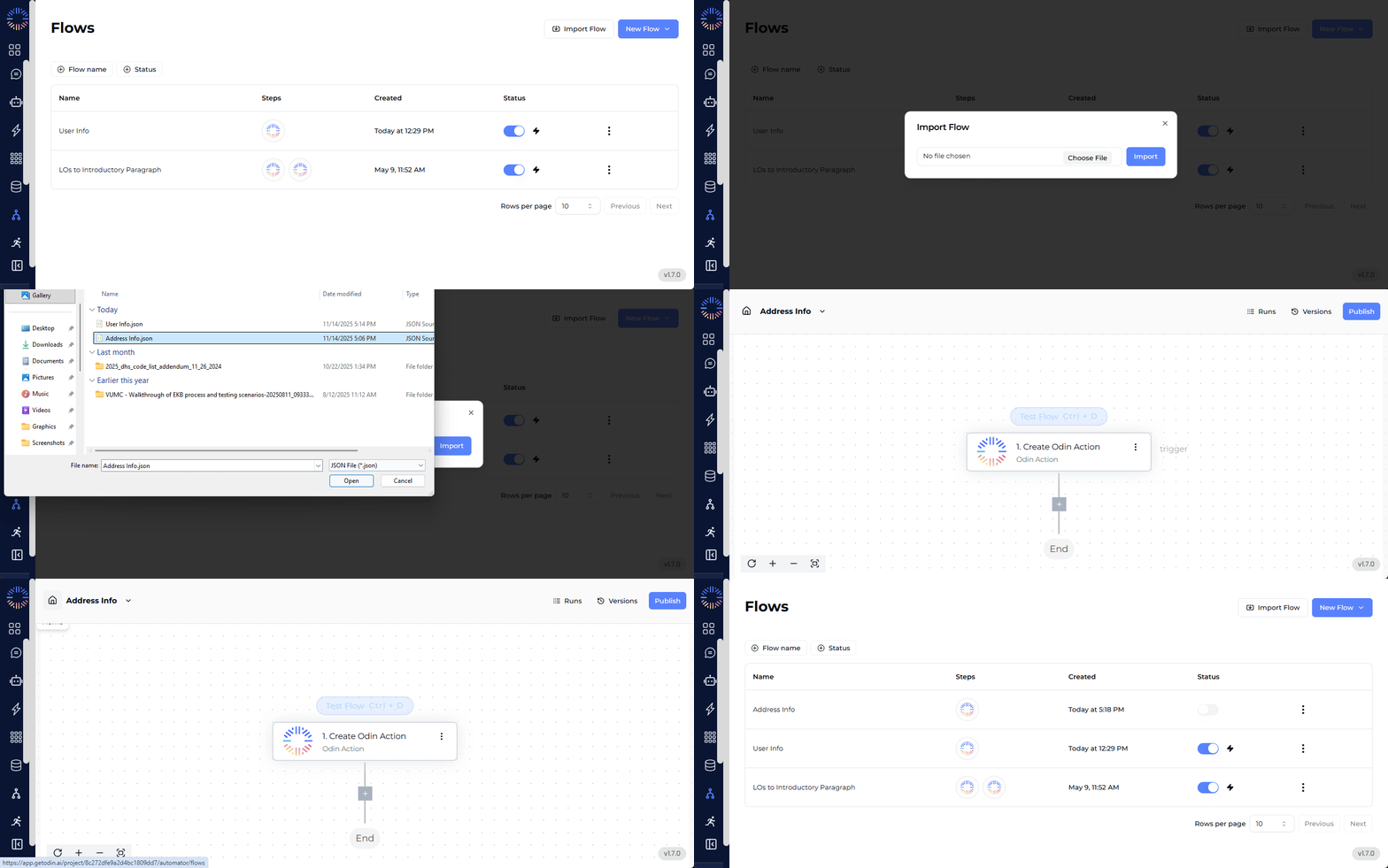
Select Workflows from the left navigation menu to open the Workflows list.
Select Import Flow in the upper-right corner.
In the Import Flow popup, select Choose File.
Locate the JSON file on your computer, select it, then select Open.
Select the Import button to import the workflow.
The workflow is imported, saved, and is opened in the editor after selecting the Import button.