
- Predefined Models - Pre-configured models available to all users
- Custom Models - Models you configure with your own API keys (BYOK)
Predefined Models
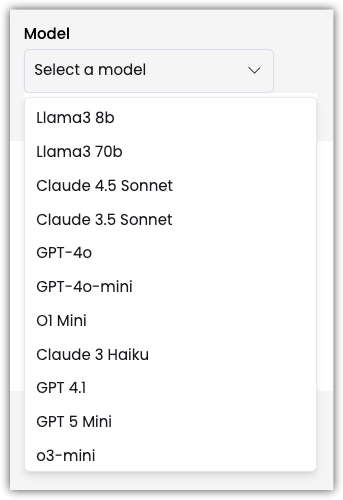
Frontier Models
Frontier models represent the latest and most advanced AI capabilities available. These cutting-edge models offer superior performance for complex tasks:OpenAI Frontier Models
- GPT-4o - Latest GPT-4 model with improved performance, faster responses, and enhanced capabilities
- O1 Mini - Advanced reasoning model optimized for complex problem-solving and step-by-step thinking
- GPT-4 Turbo - High-performance model with extended context window
Anthropic Frontier Models
- Claude 3.5 Sonnet - Latest Claude model with advanced reasoning, long context (200K tokens), and superior performance
- Claude 3 Opus - Most capable Claude model for complex, nuanced tasks requiring deep understanding
Google AI Frontier Models
- Gemini Pro - Google’s latest advanced language model with multimodal capabilities and extended context
Other Available Models
In addition to frontier models, Odin provides access to a comprehensive selection of models including:- GPT-3.5 Turbo - Fast and cost-effective option for general tasks
- Claude 3 Haiku - Fast and efficient Claude model
- Llama 3 - Open-source models (8B and 70B variants)
- Mixtral - High-performance open-source model
- DeepSeek - Advanced reasoning model
- And many more…
Model Selection
- Navigate to Agents in the sidebar
- Select or create an agent
- Click Edit to open the agent builder
- Go to the General tab
- Find the Model section
- Select a predefined model from the dropdown
Model Information
Each predefined model shows:- Model Name - Display name (e.g., “GPT-4o”)
- Provider - API provider (OpenAI, Anthropic, Google AI)
- Cost - Credits per use
- Status - Available or requires upgrade
Custom Models (BYOK)
Bring Your Own Key (BYOK) allows you to configure custom models using your own API keys. This gives you:- Cost Control - Use your own API keys and billing
- Model Flexibility - Access models not available in predefined list
- Custom Endpoints - Connect to private or custom model endpoints
- Provider Choice - Use any compatible API provider
Supported Providers
OpenAI
- Standard OpenAI API models
- Azure OpenAI endpoints
- Custom OpenAI-compatible endpoints
- API Key: Your OpenAI API key
- API URL:
https://api.openai.com/v1(default) - Model Name: e.g.,
gpt-4,gpt-3.5-turbo
Anthropic
- Claude models via Anthropic API
- Custom Anthropic-compatible endpoints
- API Key: Your Anthropic API key
- API URL:
https://api.anthropic.com(default) - Model Name: e.g.,
claude-3-5-sonnet-20241022
Google AI
- Gemini models via Google AI API
- Custom Google AI endpoints
- API Key: Your Google AI API key
- API URL:
https://generativelanguage.googleapis.com/(default) - Model Name: e.g.,
gemini-pro
OpenRouter
- Access to multiple model providers through OpenRouter
- Unified API for various models
- API Key: Your OpenRouter API key
- API URL: OpenRouter endpoint
- Model Name: Any model available on OpenRouter
AWS Bedrock
- Amazon Bedrock models
- Access to various foundation models
- AWS credentials configured separately
- API URL: Bedrock endpoint
- Model Name: Bedrock model identifier
Custom Endpoints
- Any OpenAI-compatible API endpoint
- Private model deployments
- Self-hosted models
- API Key: Your custom API key (if required)
- API URL: Your custom endpoint URL
- Model Name: Your model identifier
Adding Custom Models
Step 1: Access Model Configuration
- Navigate to Agents in the sidebar
- Select or create an agent
- Click Edit to open the agent builder
- Go to the General tab
- Scroll to the AI Models section
- Click the Custom tab
Step 2: Add New Model
- Click Add Custom Model button
- The model configuration modal will open
Step 3: Configure Model Settings
Basic Information
Model Name- Enter a descriptive name for your model
- Example: “My GPT-4”, “Company Claude”, “Custom Model”
- Enter the model identifier
- Example:
gpt-4,claude-3-5-sonnet-20241022,gemini-pro - This is the actual model name used in API calls
API Configuration
API Provider- Select your API provider from the dropdown:
- OpenAI
- Anthropic
- Google AI
- OpenRouter
- AWS Bedrock
- Custom
- Enter your API key for the selected provider
- Keys are stored securely and encrypted
- Required for most providers
- Enter the API endpoint URL
- Default URLs are pre-filled based on provider
- For custom endpoints, enter your full URL
- For Azure OpenAI, specify API version
- Example:
2024-12-01-preview
Model Limits
Max Input Tokens- Maximum tokens the model can accept as input
- Example:
60000,100000,200000 - Default:
3000
- Maximum tokens the model can generate
- Example:
4096,8000,16000 - Default:
1000
Advanced Settings
Custom Headers (Optional)- Add custom HTTP headers if required
- Example:
X-Custom-Header: value - Useful for custom authentication or metadata
- Additional parameters for model configuration
- JSON format
- Provider-specific settings
Step 4: Save Model
- Review all configuration settings
- Click Save or Add Model
- The model is now available in your Custom models list
Using Custom Models
Selecting a Custom Model
- In the General tab, find the Model section
- The dropdown shows both predefined and custom models
- Custom models are marked or shown in a separate section
- Select your custom model
Model Availability
- Custom models are project-specific
- Models are available to all agents in the project
- Each project can have its own set of custom models
Managing Custom Models
Viewing Custom Models
- Go to Agents → Edit Agent → General tab
- Click the Custom tab in the AI Models section
- See all your custom models listed
Editing Custom Models
- Find the model in the Custom models list
- Click the Edit icon (three dots menu)
- Modify configuration settings
- Click Save to update
Deleting Custom Models
- Find the model in the Custom models list
- Click the Delete icon (three dots menu)
- Confirm deletion
- The model is removed from your project
Model Configuration Examples
Example 1: OpenAI Custom Model
Example 2: Azure OpenAI
Example 3: Anthropic Claude
Example 4: Custom Endpoint
Best Practices
API Key Security
- Never Share Keys - Keep API keys confidential
- Use Environment Variables - For development, use secure storage
- Rotate Keys Regularly - Update keys periodically
- Monitor Usage - Track API usage to detect issues
Model Selection
- Match Use Case - Choose models appropriate for your task
- Consider Cost - Balance performance and cost
- Test Performance - Evaluate model quality for your needs
- Monitor Limits - Watch token limits and quotas
Configuration
- Accurate Model Names - Use exact model identifiers
- Correct URLs - Verify API endpoint URLs
- Appropriate Limits - Set realistic token limits
- Test Connections - Verify model connectivity
Cost Management
- Track Usage - Monitor API usage and costs
- Set Budgets - Configure spending limits if available
- Optimize Tokens - Use appropriate token limits
- Review Regularly - Audit model usage periodically
Troubleshooting
Model Not Available
Problem: Custom model doesn’t appear in dropdown Possible Causes:- Model not saved correctly
- API key invalid
- Model configuration error
- Verify model was saved successfully
- Check API key is correct
- Review model configuration
- Refresh the page
API Key Errors
Problem: “Invalid API key” or authentication errors Possible Causes:- Incorrect API key
- Expired API key
- Wrong API provider selected
- Key doesn’t have required permissions
- Verify API key is correct
- Check key hasn’t expired
- Confirm correct provider selected
- Ensure key has necessary permissions
Connection Failures
Problem: Cannot connect to model endpoint Possible Causes:- Incorrect API URL
- Network connectivity issues
- Endpoint not accessible
- Firewall blocking connection
- Verify API URL is correct
- Check network connectivity
- Ensure endpoint is accessible
- Review firewall rules
Token Limit Errors
Problem: “Token limit exceeded” errors Possible Causes:- Input too long
- Response limit too high
- Model limits exceeded
- Reduce input length
- Lower max response tokens
- Check model’s actual limits
- Split large inputs
Model Compatibility
Knowledge Base v2
When using Knowledge Base v2, only certain models are supported:- OpenAI models (openai, azure)
- Anthropic models
Feature Support
Different models support different features:- Streaming - Most models support streaming responses
- Function Calling - OpenAI and Anthropic models
- Vision - GPT-4 Vision, Claude 3, Gemini Pro Vision
- Long Context - Claude 3.5 Sonnet, GPT-4 Turbo
API Key Management
Getting API Keys
OpenAI
- Go to OpenAI Platform
- Navigate to API Keys
- Create a new secret key
- Copy the key (starts with
sk-)
Anthropic
- Go to Anthropic Console
- Navigate to API Keys
- Create a new key
- Copy the key (starts with
sk-ant-)
Google AI
- Go to Google AI Studio
- Create a new API key
- Copy the key
OpenRouter
- Go to OpenRouter
- Navigate to Keys
- Create a new key
- Copy the key
Key Security
- Store Securely - Keys are encrypted in the database
- Don’t Share - Never share API keys
- Rotate Regularly - Update keys periodically
- Monitor Usage - Watch for unauthorized use
Cost Considerations
Predefined Models
- Costs are managed by Odin
- Billed through your Odin subscription
- Credits-based pricing
- Transparent pricing model
Custom Models (BYOK)
- You pay directly to the provider
- No additional Odin fees
- Full control over costs
- Direct billing from provider
Cost Optimization
- Choose Right Model - Use appropriate model for task
- Optimize Prompts - Reduce token usage
- Set Limits - Configure max tokens appropriately
- Monitor Usage - Track API usage regularly
Related Features
- Agent Configuration - Configure agent behavior
- Model Settings - Adjust temperature and other parameters
- Token Management - Monitor and optimize token usage
- Cost Tracking - Track model usage and costs
Agent Configuration
Learn how to configure your agents